
AI Segmentation
AI Segmentation identifies recited passages and creates timed subtitles, which may contain complete verses or parts of verses. Launch it from the Subtitles editor with the Auto-Segment button, choose a method, and let the AI find the verse boundaries and word-by-word timings for you.
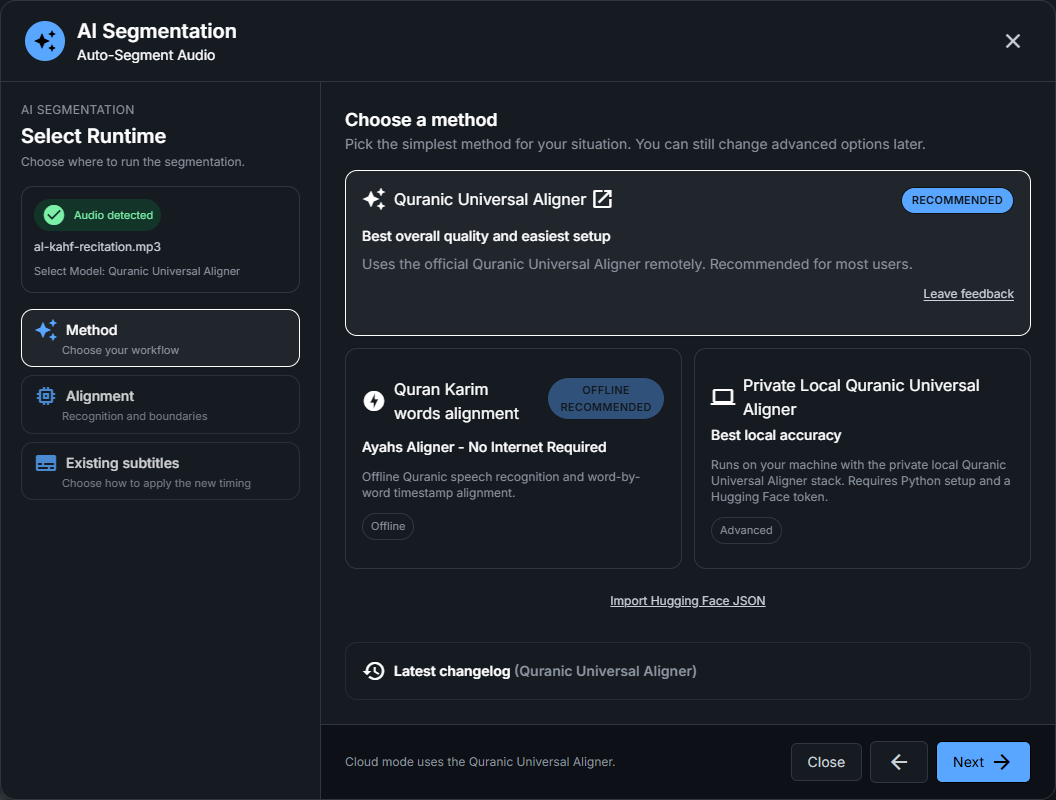
Choosing a method
Add the recitation to the audio track first. The wizard offers three methods:
- Quranic Universal Aligner (Cloud) — recommended. It runs remotely on the official Quranic Universal Aligner by QUD-Technologies, with the best overall quality and the easiest setup — no local installation required.
- Quran Karim words alignment (Offline) — runs entirely on your machine with no internet required, after a one-time download (~150 MB).
- Private Local Quranic Universal Aligner — an advanced local method. Its setup installs the local aligner packages and requires a Hugging Face token with access to the private models. A regular Hugging Face account alone does not grant that access.
The app recommends the cloud aligner for overall quality and simple setup. It sends audio to the remote service and needs an internet connection. Choose the offline word aligner for local processing after setup. Accuracy depends on the recitation and recording; review the result whichever method you use. A text AI provider key is not required for audio segmentation.
You can also use Import HuggingFace JSON to load a compatible segmentation export instead of running recognition again.
The wizard steps
The steps depend on the method. Cloud alignment goes from method selection to alignment settings. Local methods include setup when needed and a final review step.
When the Existing subtitles step appears, choose Replace current subtitles to create new segments, or Align current subtitles to keep their content and styling while updating their timing. Alignment expects the new audio to contain the same verses. JSON import also offers Append after existing subtitles, which keeps current subtitles and shifts the imported timings to follow them.
Options
For the cloud method (Quranic Universal Aligner):
- Model — Base for balanced speed and quality, or Large for more difficult recordings.
- Device — choose remote GPU or CPU processing. GPU availability depends on the service quota.
- Riwayah — Hafs, Warsh, Qalun, or Shu‘bah.
- Segment boundaries — start each subtitle earlier or end it later (in milliseconds).
- Timeline behavior — keep silent gaps between subtitles, or keep subtitles visible across them.
- Word-by-word timestamps are always included.
The offline word aligner uses a shorter setup-and-review flow and enables word-by-word timestamps by default. The private local aligner also exposes model, device, silence detection, padding, word-timing, and gap-handling settings.
Reviewing the result
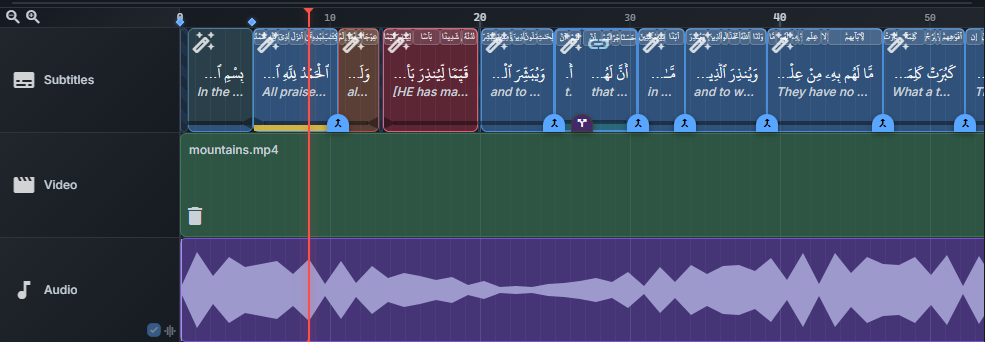
After segmentation, some subtitles may need your attention. They are colored directly in the timeline:
- Yellow — low confidence: the AI is unsure of the timing.
- Orange / red — coverage issue: some recited words were not matched.
- Blue — missing word-by-word timestamps.
- Rose — marked for length review using the chosen word-count range.
These colors mark subtitles that may be wrong — a mistimed word, a missing verse, or a caption that is hard to read. Review each flagged segment: listen to that part of the recitation, check that the text and timing match, and mark it as reviewed. Once reviewed, the colored background shrinks to a thin band at the bottom of the clip.
Use Segments to review in the Subtitles editor to jump between flagged subtitles. The same low-confidence and missing-word subtitles are also called out before you export.
What’s next?
Once the subtitles are correct, add translations in the Translations tab.