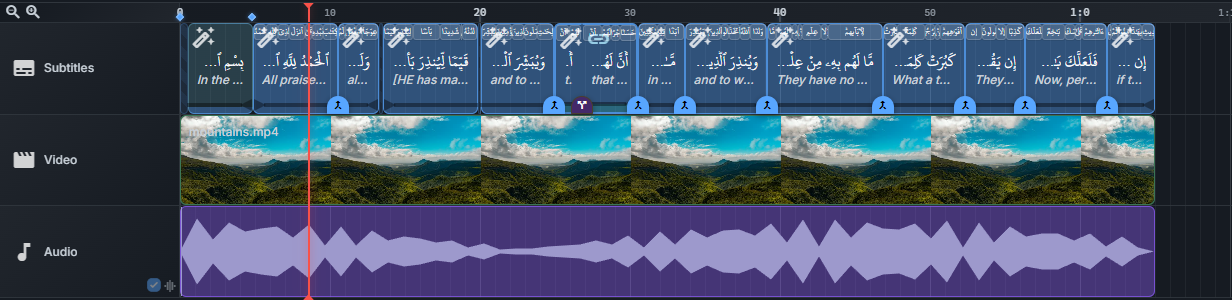
Timeline
The timeline is where you arrange your media and subtitles over time. It sits at the bottom of the editor and is organized into tracks that hold clips, with a playhead marking the current position.
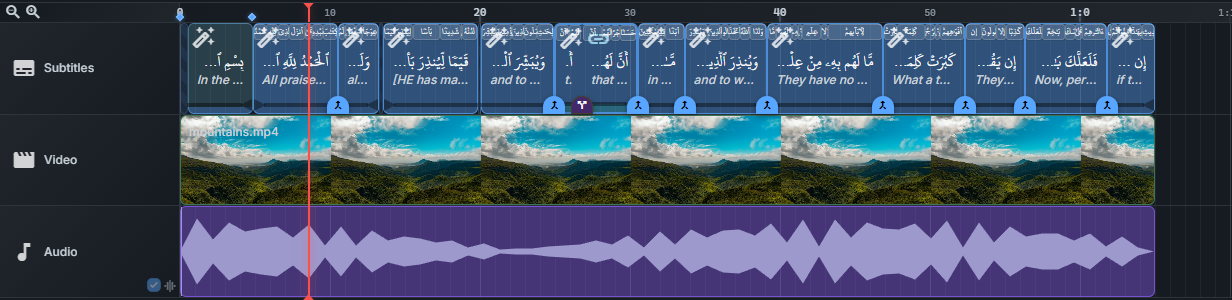
Navigation & zoom
Use the mouse wheel to navigate the timeline. Hold a modifier while scrolling to change the behavior:
- Ctrl + scroll — zoom in and out.
- Ctrl + Shift + scroll — scroll horizontally.
- Alt + scroll — move frame by frame.
- Scroll — scroll vertically.
These scroll shortcuts are configurable in Settings → Shortcuts.
Moving & editing clips
- Move — drag an audio or video asset clip to reposition it on its track.
- Trim / crop — drag the left or right edge of an audio or video asset clip. This changes the portion used in the project without editing the source file.
- Split / remove — right-click a clip and choose Split at cursor or Remove clip.
The clip menu
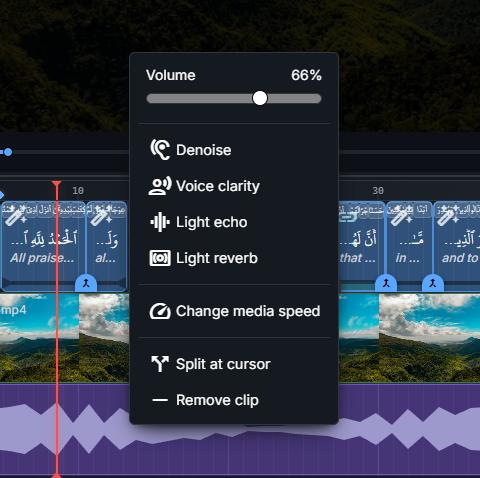
Right-clicking a clip opens a context menu. The available actions depend on the type of clip:
- Volume — a slider to set the volume of an audio clip.
- Audio effects — denoise, voice clarity, light echo, and light reverb (audio clips).
- Media speed — slow down or speed up an audio or video clip.
- Loop until the end — repeat a video clip until the timeline ends.
- Progressive image zoom — animate a slow zoom on an image clip.
- Split at cursor — cut an asset clip at the playhead.
- Remove clip — delete the clip.
Audio
- Layer audio — drag one audio clip over another to layer them and play both at the same time.
- Volume — set each audio clip’s volume from its context menu.
Transitions & crossfade
To crossfade between two video clips, first set the transition type: in the Style tab, select Video → General → Transitions → Video Clip Transition and choose Crossfade. The available options are:
- None — no transition (default).
- Fade through black — fade out to black, then into the next clip.
- Crossfade — the two clips blend into each other.
For consecutive clips, Video Clip Transition Duration sets the default overlap in milliseconds, limited by the available clip lengths. You can also drag neighbouring video clips so that they overlap: once their positions are set explicitly, the actual overlap controls each crossfade. Moving them apart removes that overlap.
Note: the crossfade is not shown in the video preview, but it will be present in the exported video.
Tracks
- Reorder — use the up / down buttons on a track to move it.
- Waveforms — on audio tracks, toggle the waveform display on or off.
Waveforms & thumbnails
Audio clips can display a waveform to help you place subtitles precisely, and video clips can show thumbnails. Waveforms are toggled per audio track; video thumbnails are controlled in Settings → Default Values.